

Some time ago we enabled the ability to create Web Crypto keys in the browser on all Seed sites, for users to be able to sign their comments right on the site they are visiting. Previously they were redirected to hyper.media because this was the only place where their identity key lived, as Web Crypto keys are tied to a single domain and can't be shared securely.
Now, this creates fragmentation. Essentially you have a separate account on each web site you are commenting on. Our vision for solving has always been the idea of linking your keys. You account is essentially the set of all the keys you have on you different devices and web sites.
So during the past few weeks I've been working on implementing key linking. We already used to have to link desktop keys to hyper.media, but it wasn't suitable as-is for multi-origin world we now live in.
So, I'll explain some of the changes I did.
It All Begins on the Web
Our previous device linking flow was starting in the desktop app. This is pretty counter-intuitive, and probably no one actually did it this way properly. You had to know this feature existed, and it was buried in the settings of the app.
The new flow begins on the web. The user is prompted to create an account during the process of writing their first comment.
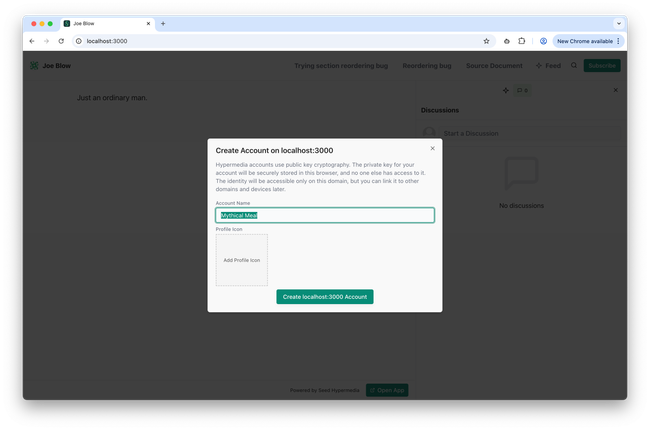
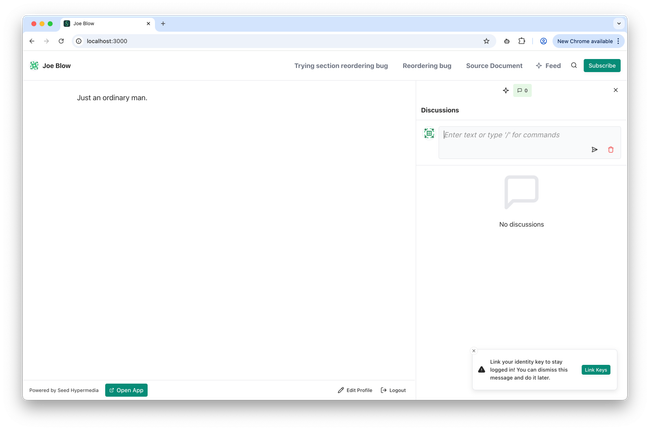
The device linking doesn't get in the way and we let the user write and publish their comment. A closable toast is displayed to remind them to link their keys.
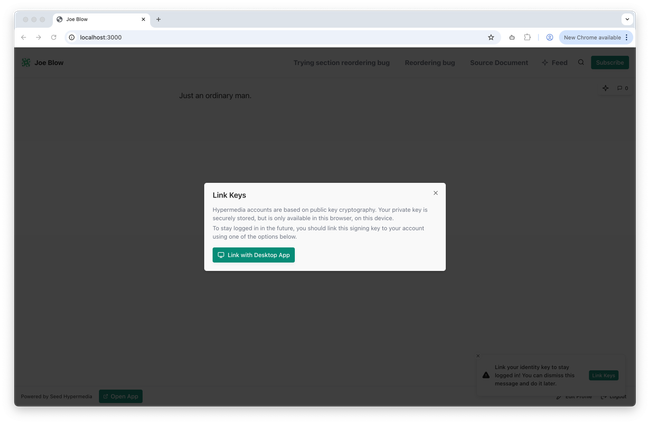
When user presses the "Link Keys" button they see a modal with explanations why this is necessary, and the options for linking. Right now there's only one option to use the Desktop App. Hopefully eventually we'll have a mobile app option in there, which increasingly becomes my most favorite option, compared to Passkeys or simple Web Crypto keys on hyper.media. A mobile identity wallet could bring so many benefits to our ecosystem, and it's probably the best option for users who care about self-sovereignty of their identity.
Linking Instructions
When the Link with Desktop App button is pressed the user is driven to the device link instructions page.
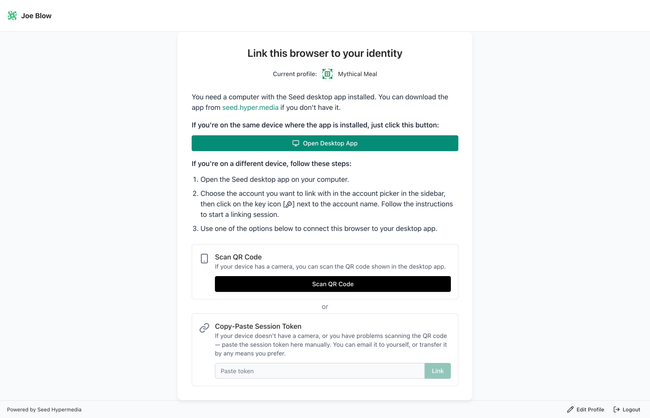
On this page by default we show a few options. Should be self explanatory.
Notice that on mobile, when we for sure know you don't have the desktop app on this device, we don't show you this option, we just show you the steps to follow.
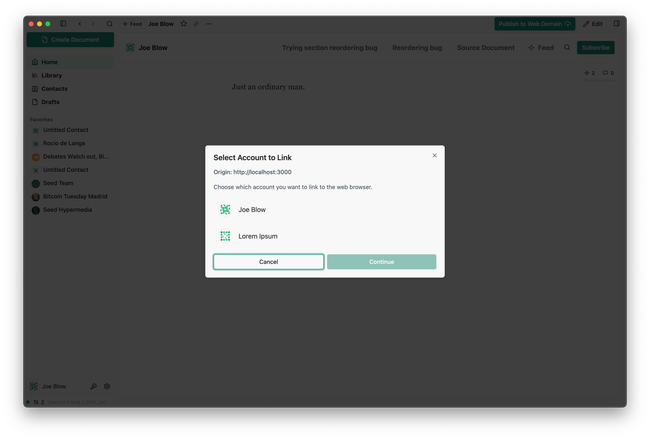
If you do happen to have the desktop app installed on the same computer, you click the button and the app asks you to choose an account, and start the linking session.
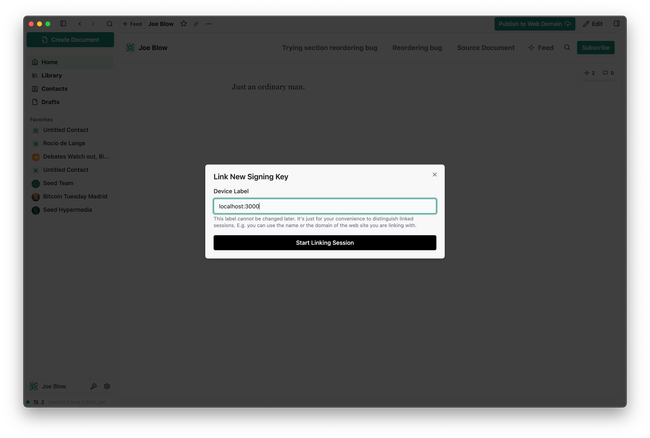
We pre-fill the device label with the domain name of the web site you're coming from. We still let you change it if you want. We should probably stop saying "device" in this entire process, because you can have many keys linked from the same device.
Then we show you the linking session details:
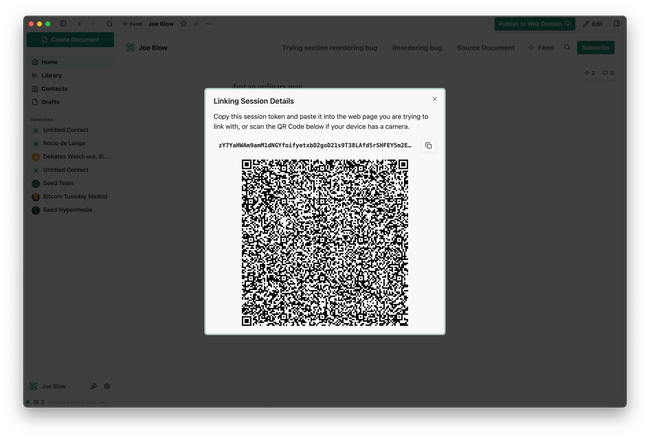
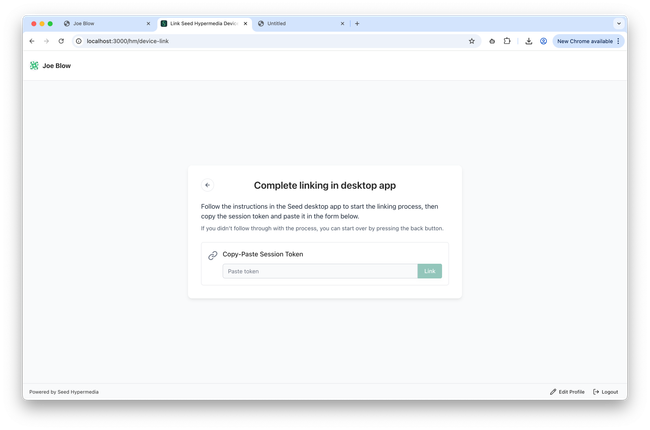
Unfortunately there's no easy way at this step to pass this information back to the browser. We could involve the server to pipe the information, and we can do it as a future improvement. For now, the user is expected to copy-paste the session token back on the web page.
The web page has been cleaned up to only offer relevant information for this step of the process:
Then we show you the final confirmation screen for you to check everything:

After confirming you see the final success screen:
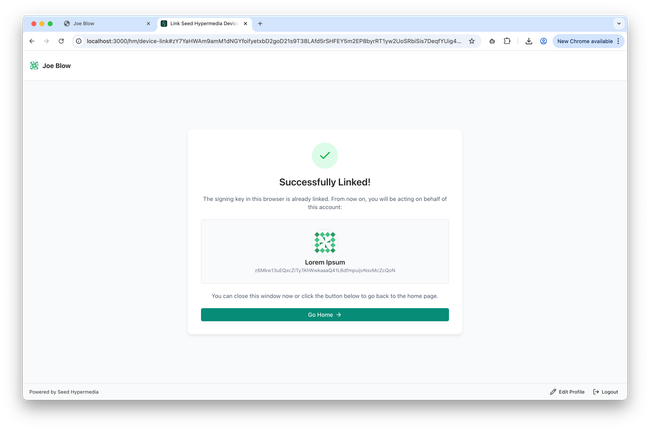
Because this is a separate tab, usually you can simply close it, which brings you back to the tab where you came from. The toast would've disappeared by that time, so you can just keep using the site.
Mobile Experience
As mentioned, on mobile we don't display irrelevant information about the desktop app. Your only options are to either scan the QR code or copy-paste the session token manually. The assumption is that most users would simply scan the QR code, but the manual copy-pasting is there just in case.
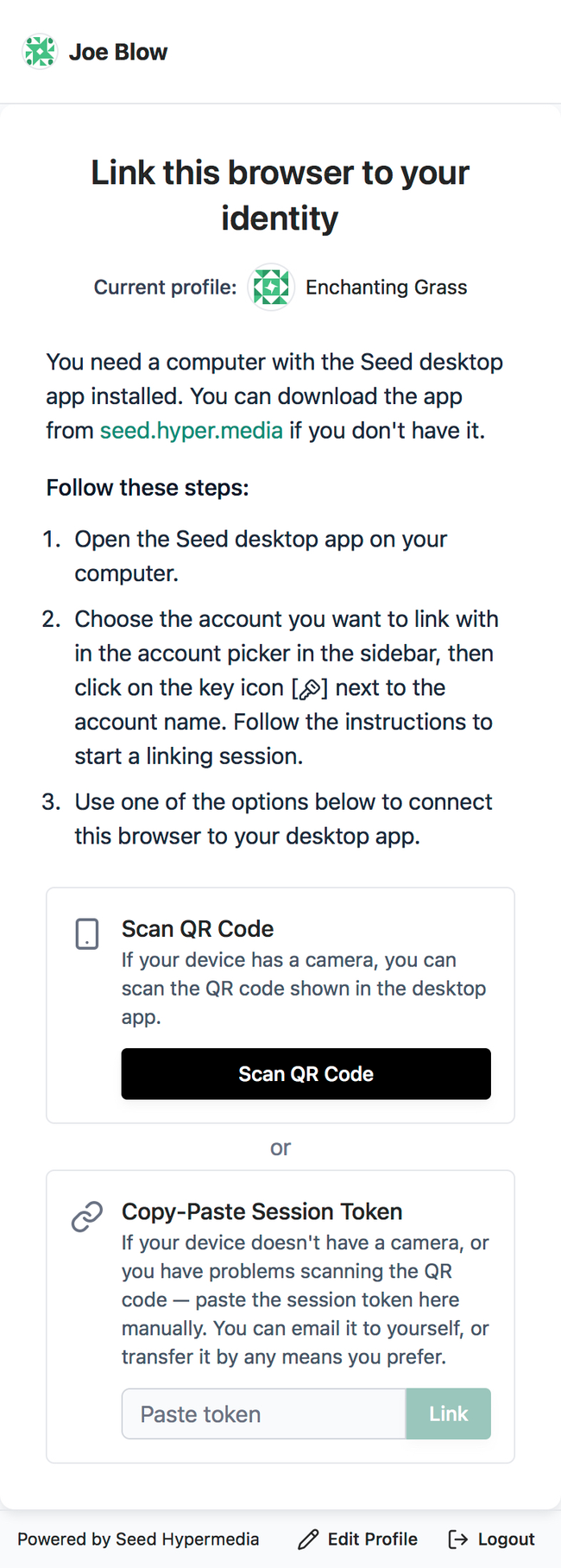
I know we've been reluctant about having complicated list of steps to follow, so I reduced the list to just 3 steps, so it's now much easier to follow. I think this list of steps is much easier for people to follow than sending themselves some kind of a magic link, just to save themselves one click.
Yes, now starting a linking session is basically one click away. I've added a button to the account selected in the app.
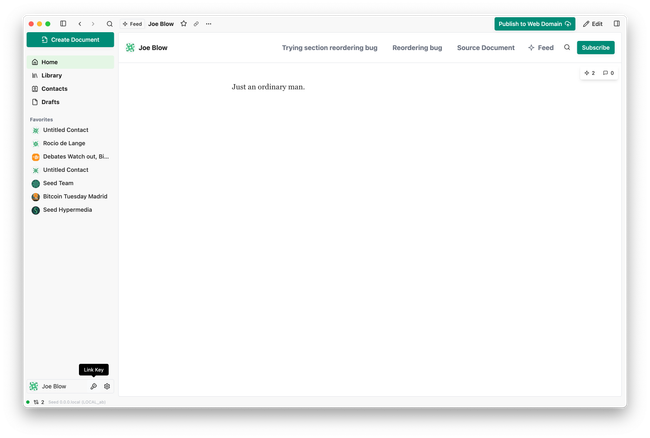
This will fire the same process as previously, and then the user would simply need to scan the QR code on their phone.
Conclusions
I did my best (given the amount of time spent — of course this could be improved in infinite number of ways) to simplify key linking without introducing major changes into how the process works.
The text can probably be improved in many ways, right now it's too all over the place — keys, devices, accounts, profiles, link, linking, etc.
I did translate some of it to Spanish, but after all the changes I made in the process I decided to leave the translations for some future time.
Do you like what you are reading? Subscribe to receive updates.
Unsubscribe anytime